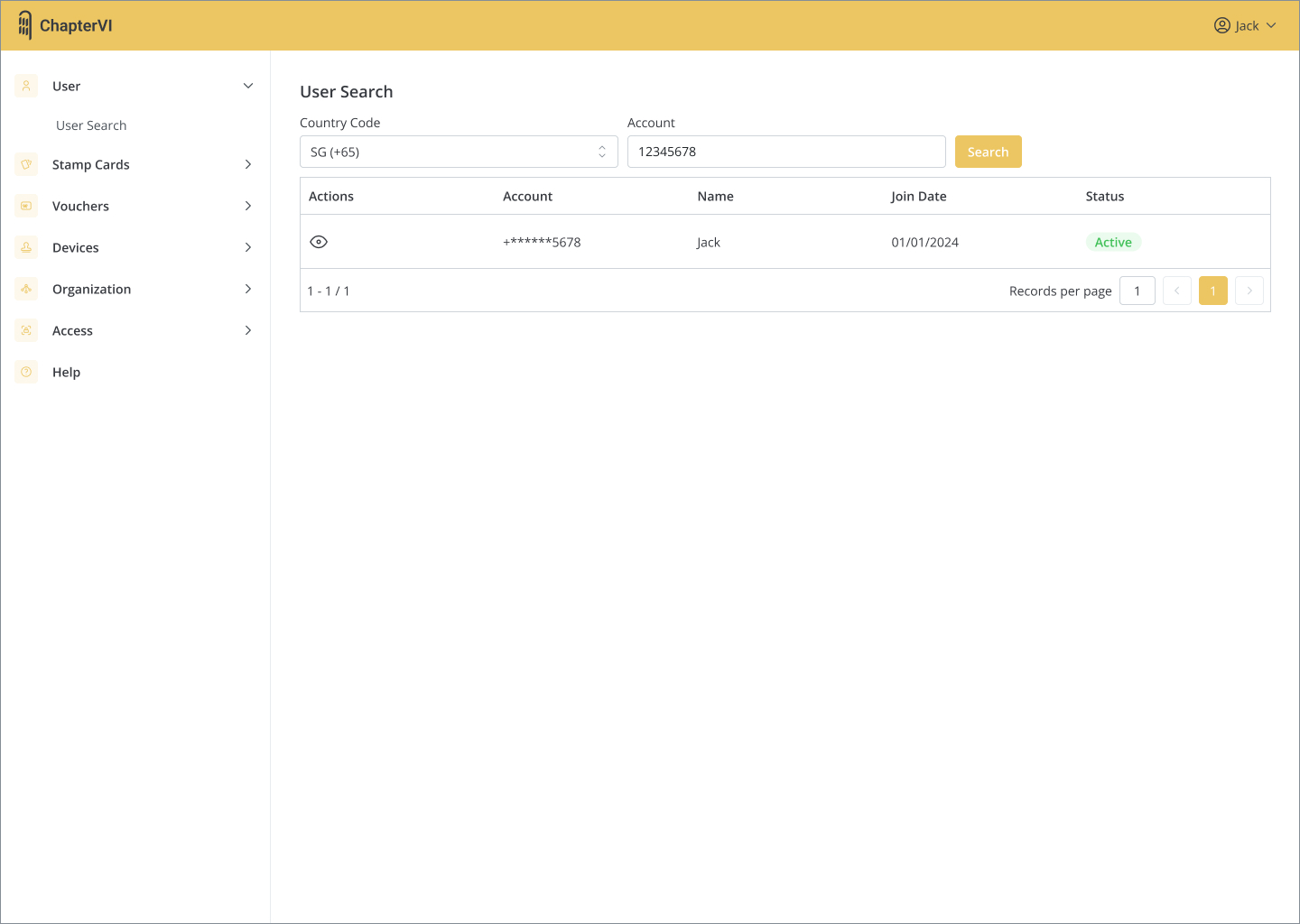
Merchant may only search by mobile number given to them by user making an enquiry.
Confirm user name is correct and Click in action button to view User.
Issue stamps on user’s stamp card
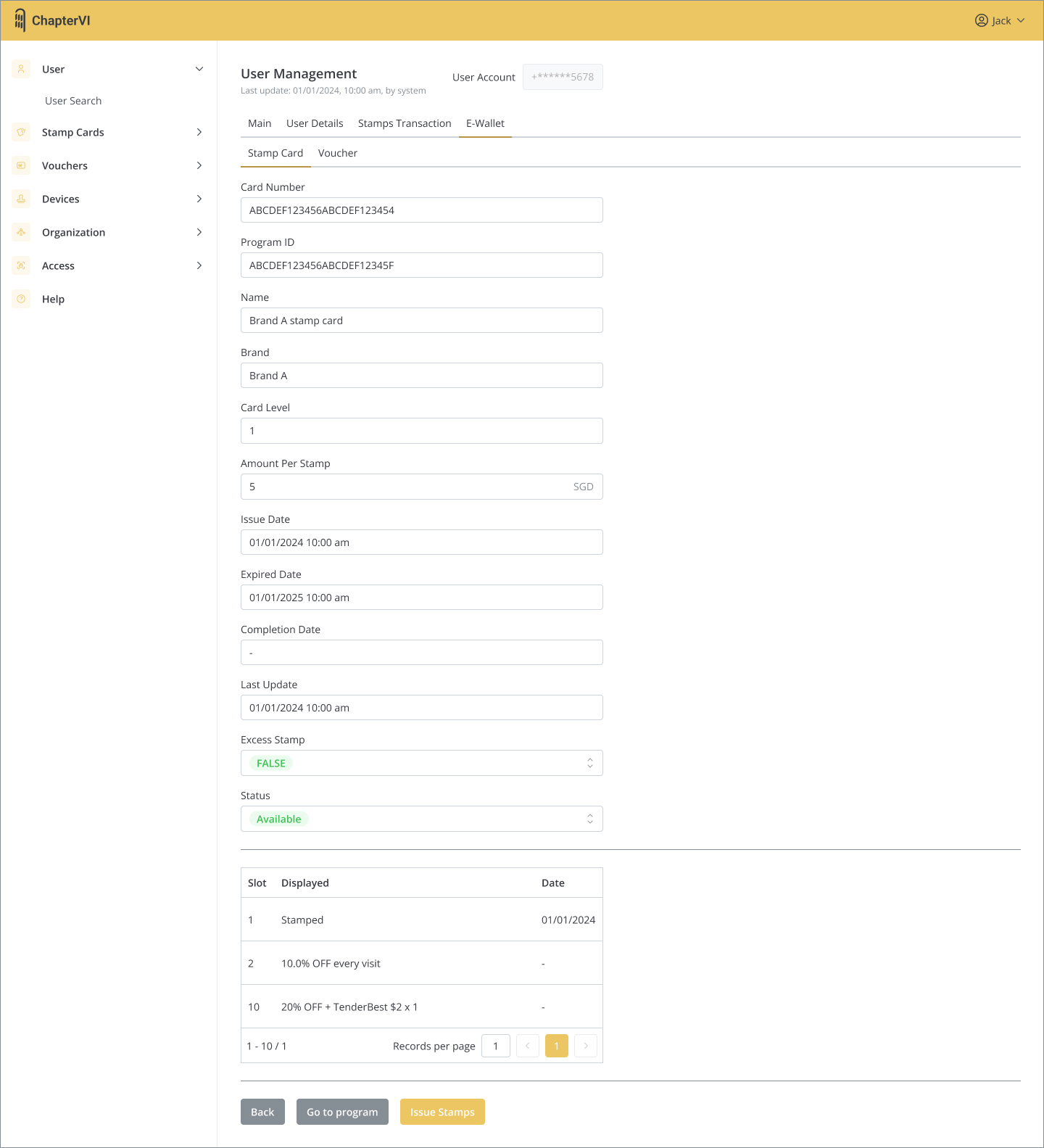
If user has a Stamp card with the merchant, click and enter “E-Wallet” tab to view Stamp Card.
Click in action button to the next step.
Note that if user does not have any transactions with the merchant, merchant will not be able to see their e-Wallet or other details.
Select “Issue Stamps” at the bottom of the page.
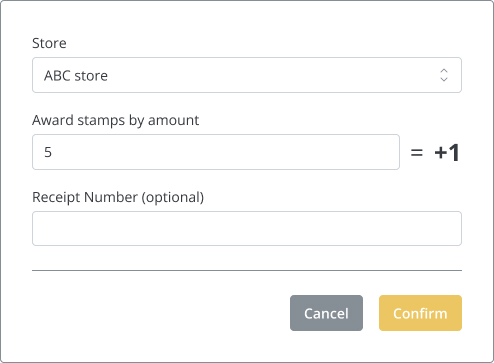
Enter amount and number of stamps will be auto-calculated.
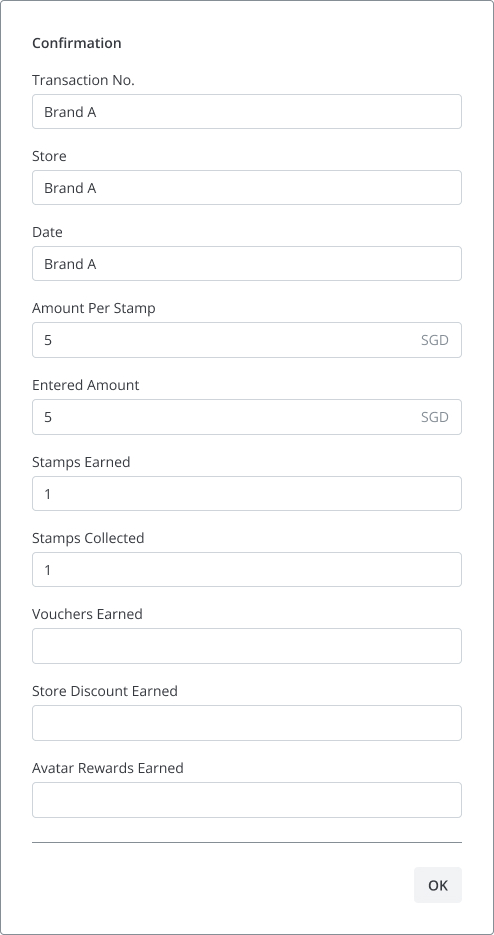
Click “Confirm” to issue and view confirmation.
Note:
To keep the stamp transactions records consistent, voiding of Stamps must be done on the full transactions.
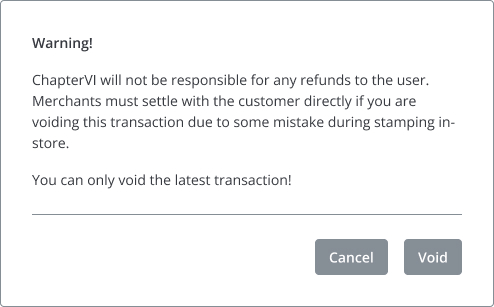
Voiding last transactions in user’s wallet will void all the vouchers issued AND the issued stamps will be reverted back.
Voiding transactions that are not the last transaction will ONLY void all vouchers issued (since calculating non-last transactions may involve adjusting multiple stamp cards bought in between).
Void stamps on user’s stamp card
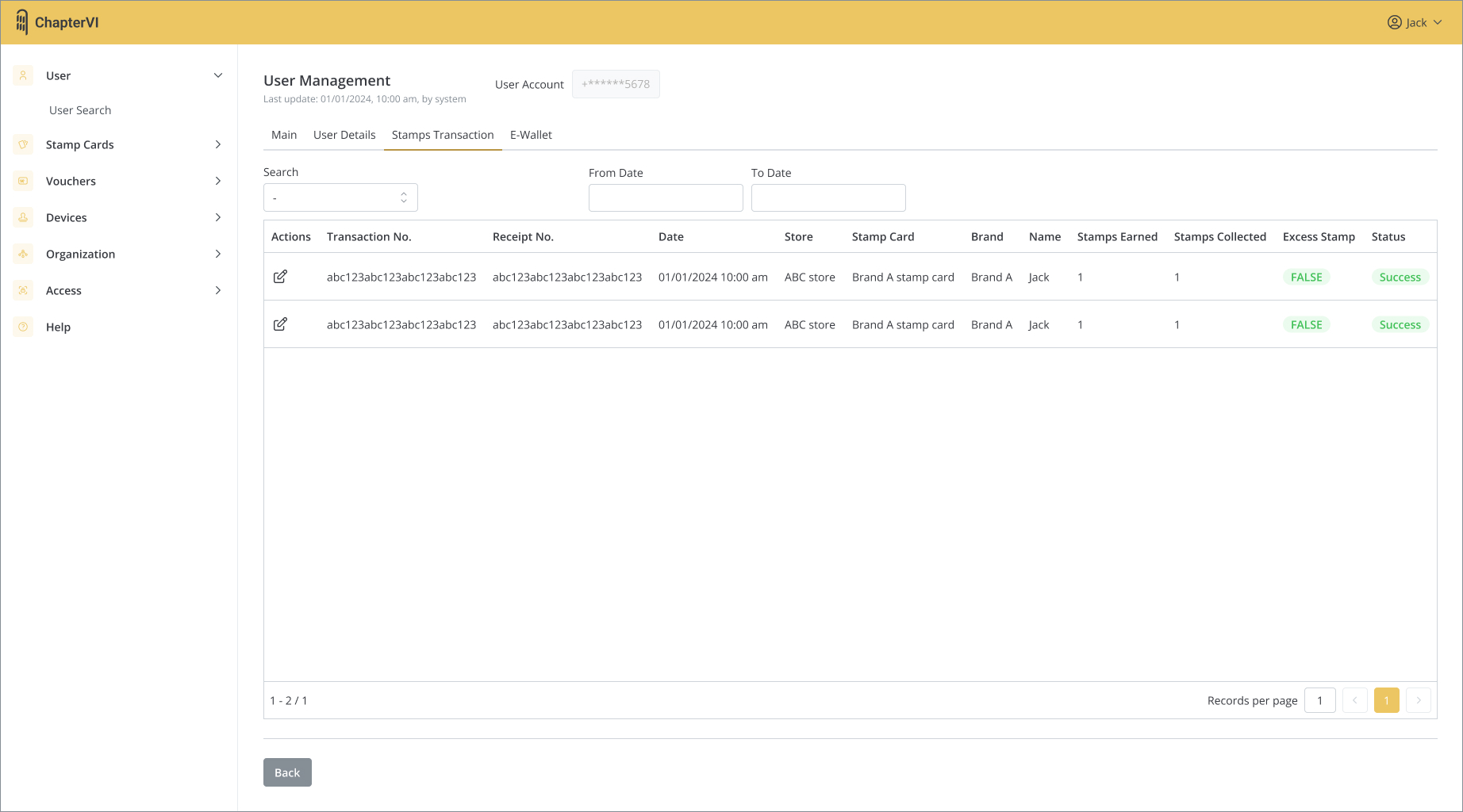
Similar to issue stamp, search for user then click on “Stamp Transactions”.
Click on “Actions” button of the transaction.
Can search by “Receipt number”, “From Date” and To Date”.
Select “Void” at the bottom of the page.
After reading the rules, click “Void”.
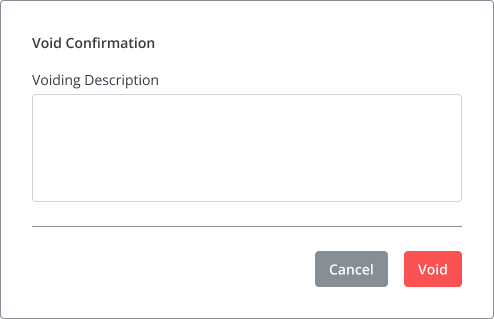
After filling in the reason, click “Void” to complete this voiding.


 ChapterVI | First Meta Stamp-ing loyalty platform in Singapore